> ## Documentation Index
> Fetch the complete documentation index at: https://docs.1capture.com/llms.txt
> Use this file to discover all available pages before exploring further.
# Remark Tool👍
👍 Recommended feature
The Remark tool allows efficient annotation of screenshots. It enables quick issue marking while ensuring a clean appearance. It is recommended for developers, product designers, designers, and other users who frequently provide screenshot feedback.
After selecting the capture area, choose the Remark tool. Then click on the target area to set the starting point. Next, move the cursor to an empty space and click again to set the text box. After entering text, a neat remark is completed.
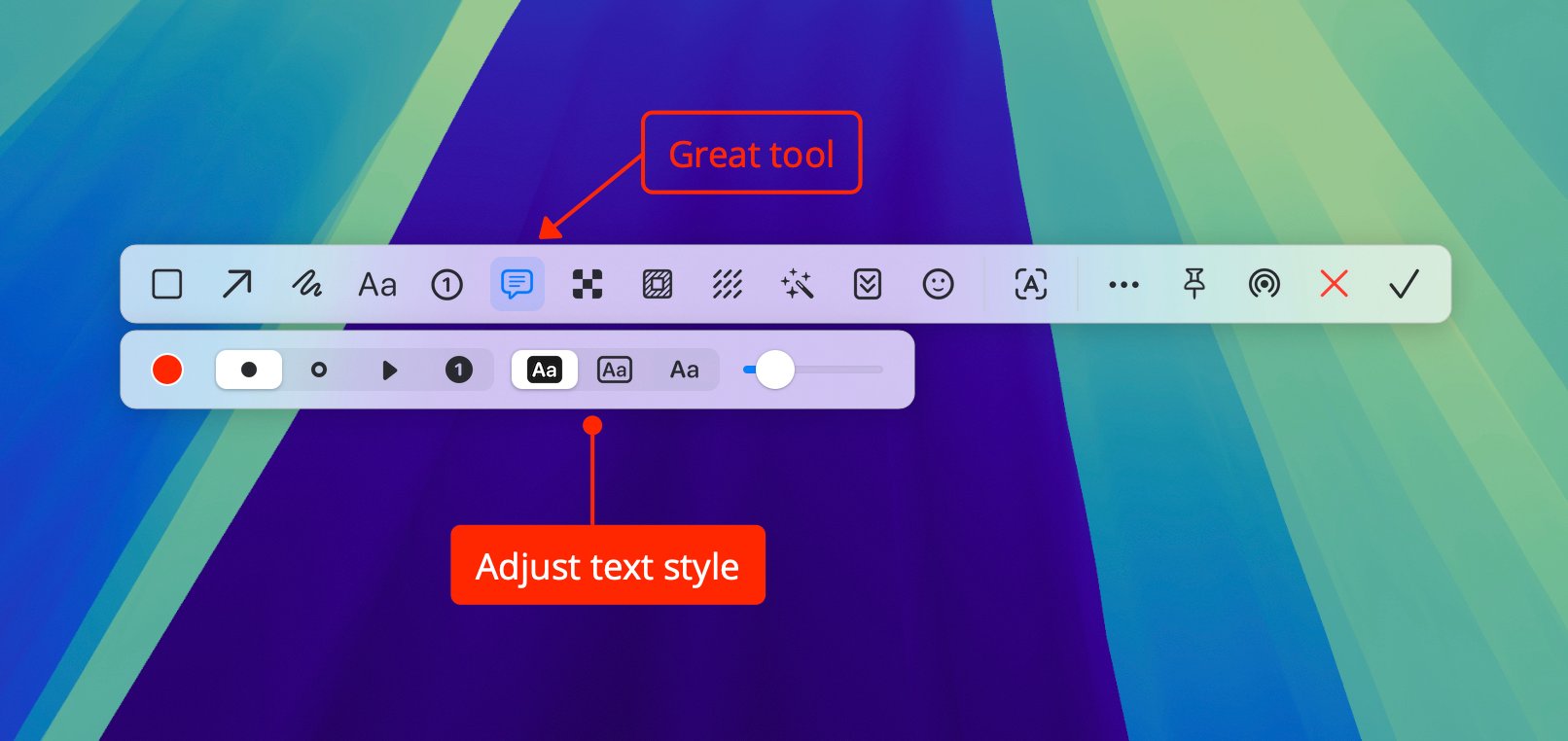 If you need to change the style of a remark, use the secondary toolbar of the Remark tool. Here, you can adjust the starting point and text box style of the remarks as needed.