> ## Documentation Index
> Fetch the complete documentation index at: https://docs.1capture.com/llms.txt
> Use this file to discover all available pages before exploring further.
# Counter Tool
When adding annotations to screenshots, you often need to use counting points to distinguish notes. However, writing annotations directly on the image may obscure content. 1Capture offers a feature that displays annotations in the sidebar, effectively solving this issue.
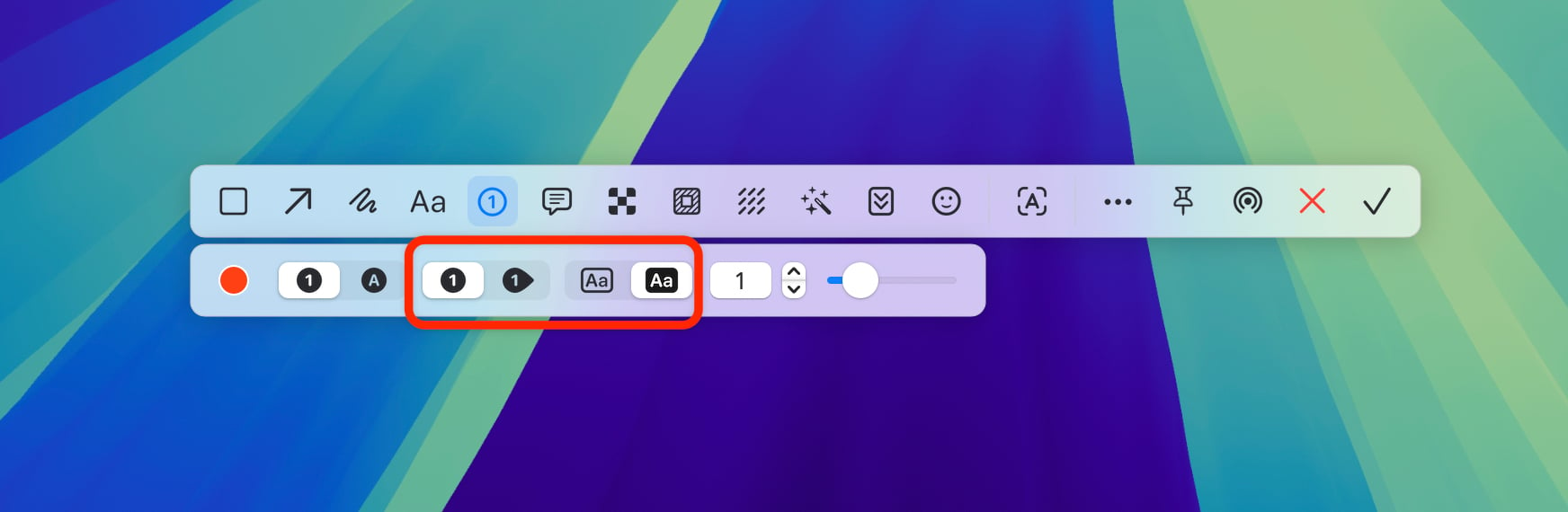 Enter capture mode, switch to the Counter tool, and add counting points to annotate the image. Each time you add a counting point, a note dialog will appear. The notes you enter will be displayed in order on the right side of the screenshot after saving.